





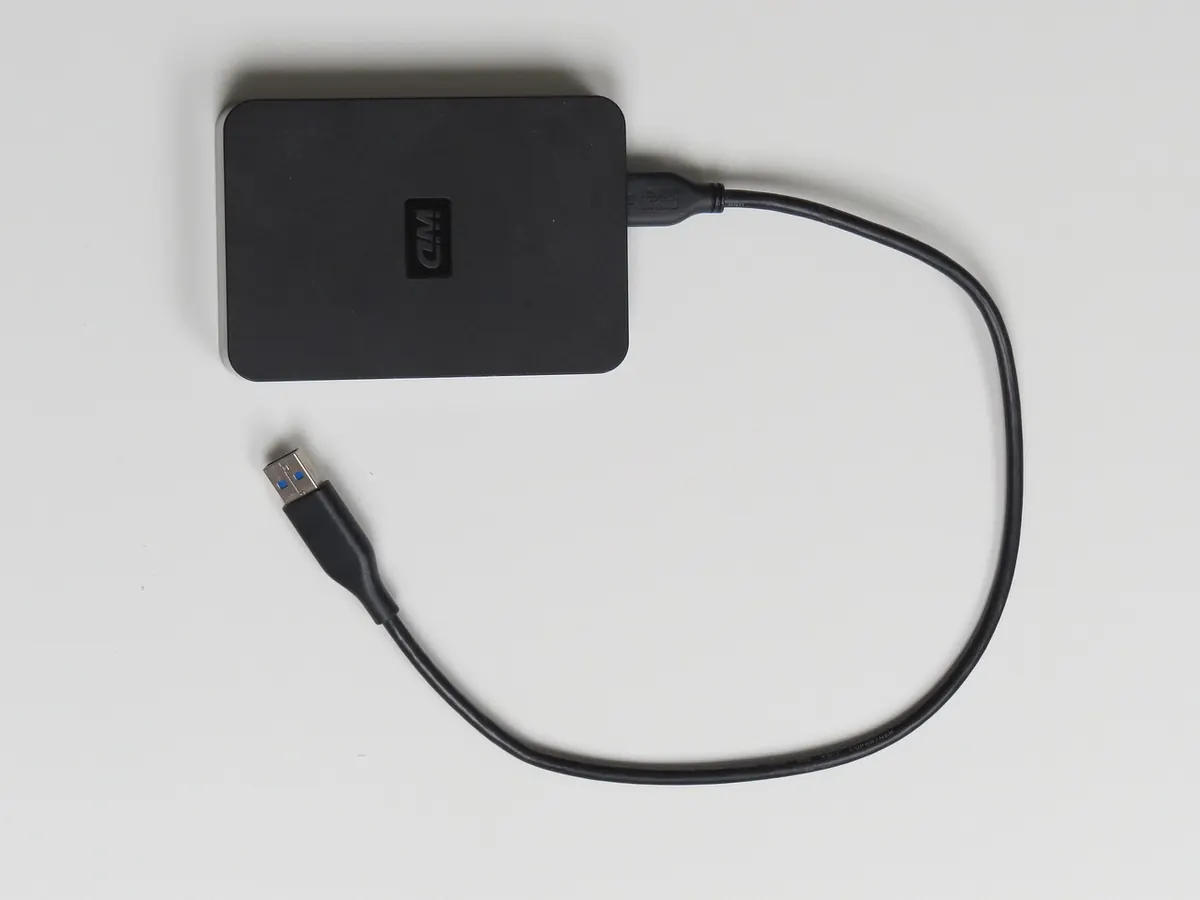
Most people don't lose data in a dramatic hack. They lose it on an ordinary Tuesday: a laptop left on a train, a ransomware email opened while half-awake, a hard drive that clicks twice and then goes silent. Backups are the one part of security that turns a catastrophe into an annoyance. You don't need an IT department to get this right. You need three numbers, a couple of devices, and about half an hour of setup.
The 3-2-1 Rule in Plain English
The rule is a memory aid that has survived for decades because it solves three different failure modes at once.
Three copies of your data. Two different types of storage. One copy kept somewhere else.
Your original file counts as copy one. So a basic setup looks like this: the photos on your laptop, a copy on an external drive in your desk drawer, and a copy in a cloud backup service. Three copies, two kinds of storage, one of them offsite.
Why three copies?
Because one backup is a single point of failure. If your only backup drive is the one that gets dropped, encrypted, or corrupted mid-write, you have no backup at all. Three copies means two things have to fail at the same moment before your data is gone.
Why two different types of media?
Two identical drives bought in the same order often fail the same way. More importantly, a drive that sits plugged into your computer is exposed to everything your computer is exposed to. Ransomware doesn't stop at your Documents folder; it encrypts mapped and connected drives too. Cloud storage and a removable drive fail differently from each other, which is the point.
Why one copy offsite?
Fire, flood, burglary and power surges don't care how disciplined you are. A copy that lives in a different building survives the event that destroys your desk.
What Actually Counts as a Backup
This is where most beginners get caught, and it's worth being blunt: syncing is not backing up.
Services like Google Drive, iCloud, OneDrive and Dropbox are built to mirror your files across devices. That's useful, but when you delete a file by accident, the deletion syncs too. When ransomware encrypts your folder, the encrypted versions upload and replace the good ones. Some services keep short version history, which helps with a mistake you notice the same week, but it is not a reliable safety net after a month.
A real backup is an independent copy that you can restore from even if your main machine, your account, or your whole house is gone. It should never be your only copy, and it should never be the thing you trust alone.
Setting Up Your First 3-2-1 Routine
- Decide what actually matters. Don't try to back up everything on day one. Start with documents, photos, tax records, password manager exports, and any work you'd be paid to redo. You can widen the net later.
- Buy one decent external drive. A plain USB drive from a known brand is fine. Skip anything that needs a subscription to unlock your own files.
- Turn on built-in backup software. Windows File History and macOS Time Machine are already installed and they do the job. Point them at your external drive and let the first full copy run overnight.
- Add a cloud backup copy. Choose a service that keeps backed-up versions rather than pure sync. Read the settings page carefully: most let you pick folders and set a retention window. Turn on encryption if the option exists, and use a strong, unique password stored in a password manager.
- Label and store the drive sensibly. A drawer away from the laptop is better than the same bag. For a genuinely offsite physical copy, keep a second drive at a relative's house or in a workplace locker and swap it every few weeks.
- Write down what's covered. One page: which folders, which services, where the drive lives, plus recovery codes. Store it somewhere a trusted person could find it.
Mistakes That Quietly Break Backups
- The drive never gets unplugged. If ransomware runs while it's connected, the backup is encrypted too. Unplug after each backup.
- Nobody ever tests a restore. An untested backup is a guess, not a plan.
- The backup runs once, then stops. Tripped over a full drive, a changed password, or a laptop that never stays on long enough. Check the logs.
- Everything relies on one account. If cloud backups live under an email account you lose access to, you lose the backups with it.
- No encryption. A lost external drive with unencrypted tax records is a much bigger problem than a lost drive.
Test It Before You Need It
Once a quarter, pick two or three random files from a year ago and restore them to a temporary folder. Open them. Check they're not corrupt. Time how long it takes, because if a full restore would take four days, you want to know that now and not during a crisis.
While you're there, confirm the cloud service is still running and your payment card hasn't expired. Lapsed subscriptions are one of the most common ways people discover, too late, that they had no backup.
Where to Go Next: 3-2-1-1-0
Once the basics are running smoothly, add two refinements. The extra 1 means at least one copy is offline or immutable — a drive that's physically unplugged, or cloud storage that can't be deleted or altered for a set period. The 0 means zero errors when you verify your restores. Together they defend against ransomware that hunts for connected backups and quietly corrupts them.
A Routine You'll Actually Keep
Sunday evening: plug in the external drive, let the backup finish, check the status, unplug it. Once a month, glance at the cloud dashboard. Once a quarter, restore a file and confirm it opens. Replace your drives every few years rather than waiting for one to die.
That's the whole system. It isn't glamorous, and it takes less time than scrolling your phone during a coffee break. But when a drive fails or a phishing email slips through, the difference between a bad afternoon and a permanent loss is a routine you set up once and then mostly forgot about.
Photo: Hans / Pixabay